
Appearance
Building Guides
Creating & Modifying Guides
Add GuideSail Builder
Once you've installed the GuideSail Builder extension, and pinned it to your browser, you're ready to start creating guides in seconds.
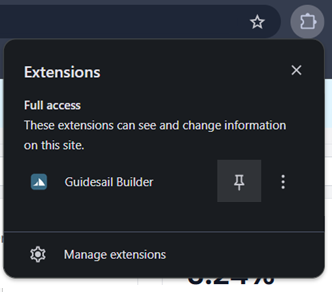
Authenticate GuideSail
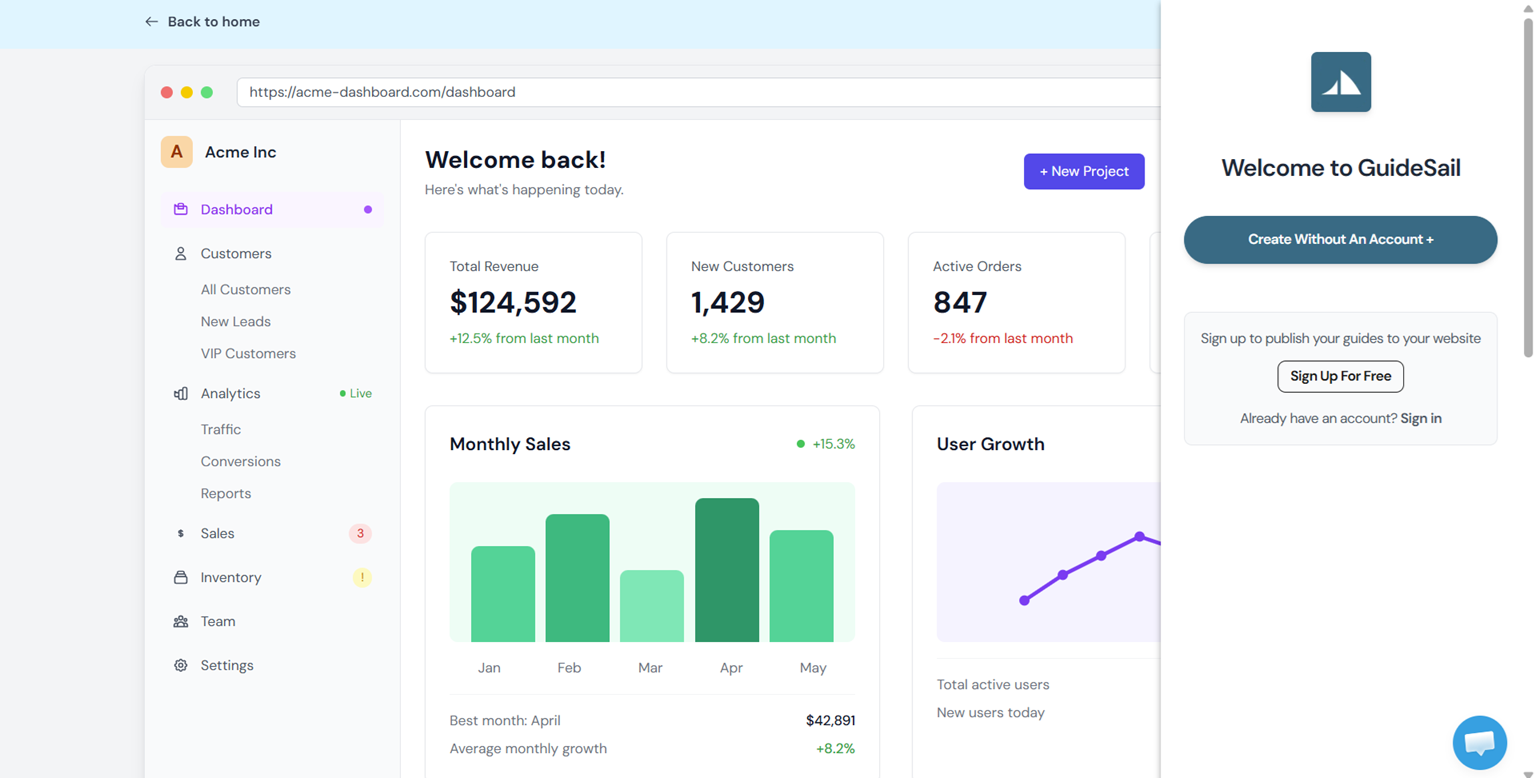
Navigate to your app or webpage and click the GuideSail extension icon to launch it. You should see the GuideSail builder on the right side of your screen.
Follow the instructions to sign in or create an account. (Guides can be built without an account, but you will need an account in order to publish them).
The sign in options will take you to the GuideSail dashboard to authenticate. Once you are signed in, return to your webpage and refresh before launching GuideSail again. You are ready to start building!
Create Guide
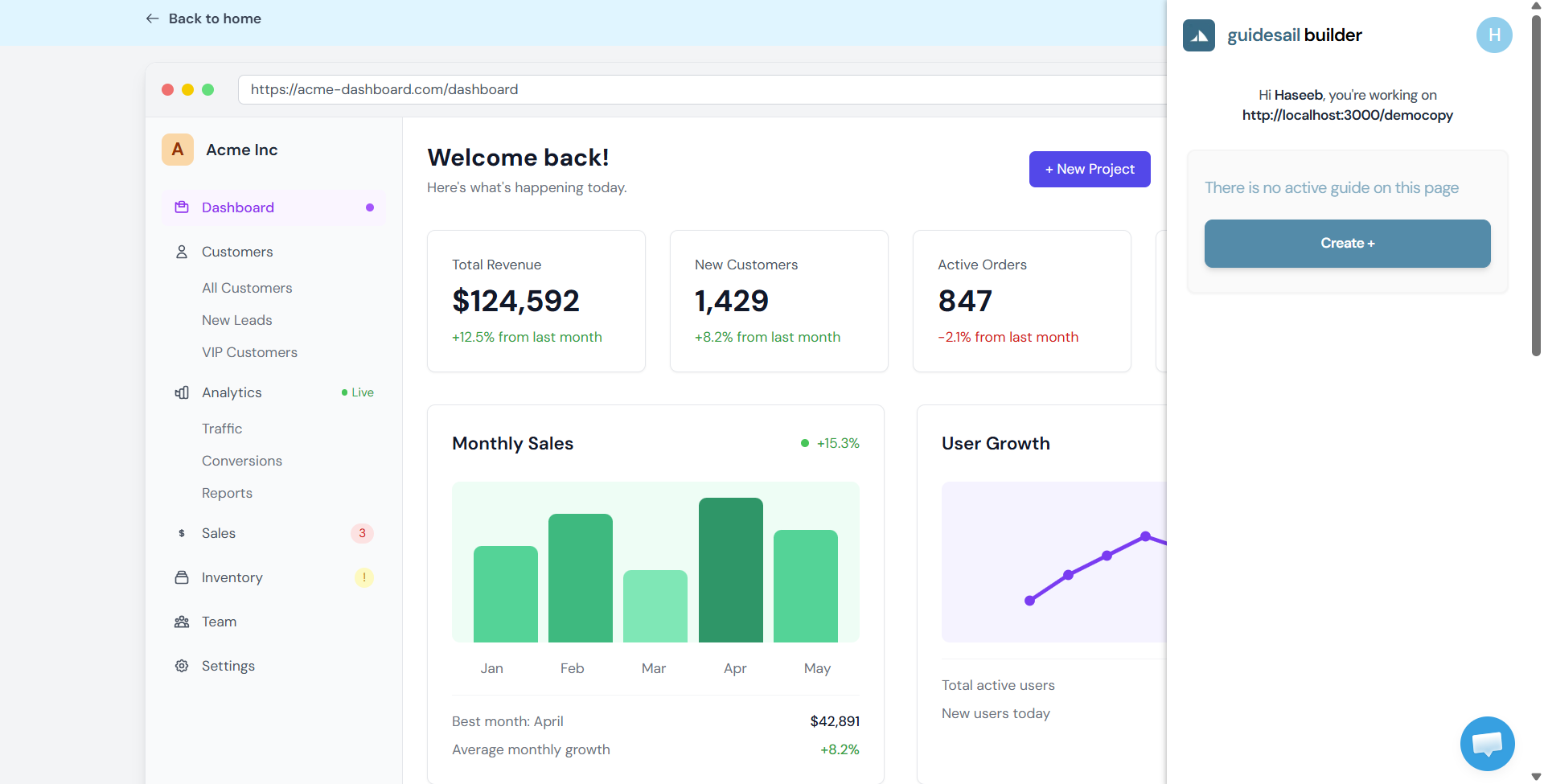
At the top of the builder you should see the URL for your webpage, this is the webpage on which the guide will be displayed for your users. In the settings you may modify how this URL is matched with advanced matching logic.
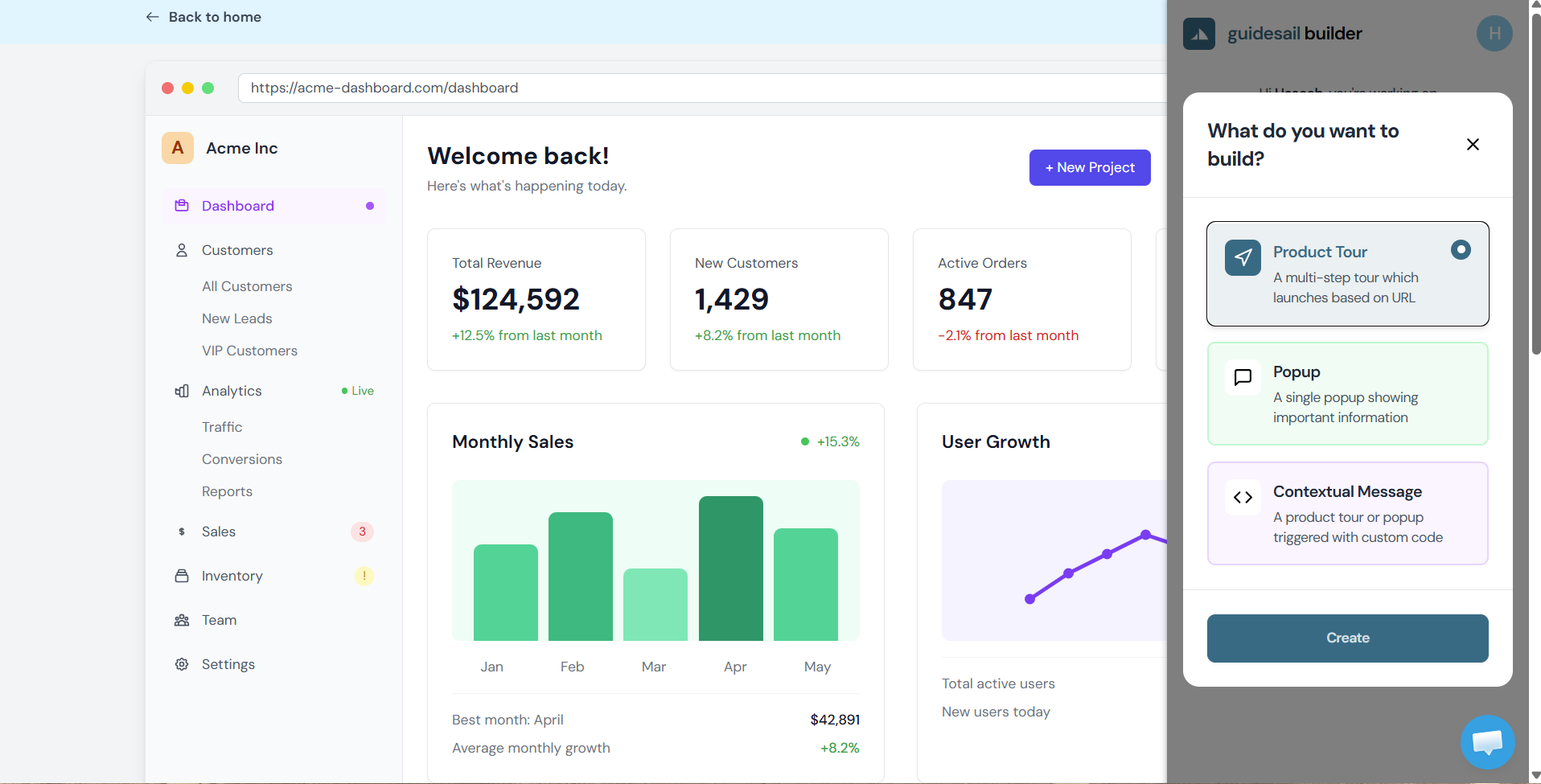
Click "Create +" to start building guides. You can select from a preset template, however all guides are customizable so you can always add different step types and modify settings regardless of your selection.
Select a guide type and click Create. You have successfully created a guide!
Configuring the Guide
Guide Configuration Settings:
| Setting | Description |
|---|---|
| Title | Start by giving your guide a title. This is not shown to your users. |
| Launch Settings | Automatic Guides are launched when your user views this page (based on URL Match). If set to once only then this will only be shown once to each user. (e.g. You may want to show an onboarding guide only once.) Manual Guides are launched based on a function call. This method allows you to control when a guide is shown to a user (e.g. when they click a button on your page). |
| Custom Styling | Here you can control the text shown on the Next, Previous, and Done buttons of your guide. |
| URL Match | Automatic Guides are set based on the URL match when the user visits this page. Typically this should be left as is. But in advanced cases there is the option to use Custom URL Match Strings |
Guide Steps:
In this section you can add steps to your guide. Every guide must have at least one step. Every step must have a title.
| Step Type | Description |
|---|---|
| Tooltip | A small pop-up box that appears over an element. Useful for providing additional information on a specific part of the product. |
| Popup | A dialog box that appears in the center of the screen. Ideal for introduction steps, or general user messaging. |
| Click | This step is not displayed to your users, but it initiates a click on the element you select. This is useful if you want to progress the UI forward automatically. |