
Appearance
Getting Started
Quick Start
This guide walks you from a fresh install to a live guide on your app.
Step 1 — Install the Chrome extension
Install the GuideSail Builder extension from the Chrome Web Store, then pin it to your browser toolbar so it's easy to access.
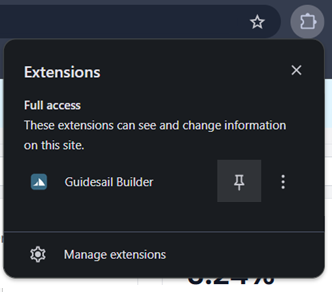
Step 2 — Open your app and launch the Builder
Navigate to the page in your app where you want to display the guide. Click the GuideSail extension icon — the Builder sidebar will open on the right side of your screen.
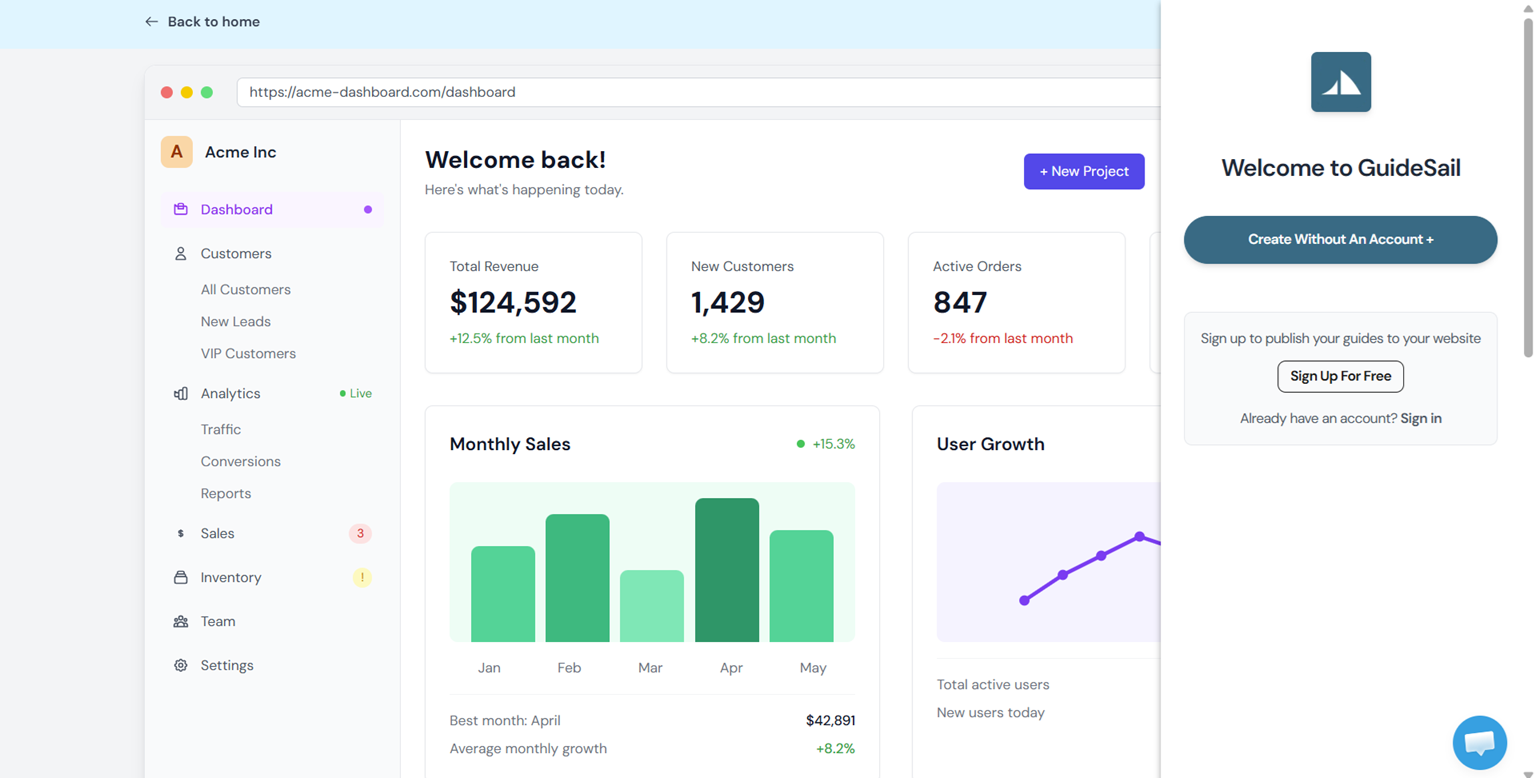
Step 3 — Sign in or create an account
Follow the prompts in the Builder to sign in or create a free account. This will take you to the GuideSail dashboard to authenticate. After signing in, return to your app tab and refresh the page, then click the extension icon again.
Step 4 — Create a guide
Click Create + in the Builder. Select a template or start from scratch, then click Create. You now have a guide tied to the current page URL.
From here you can:
- Add and configure steps (Tooltip, Popup, Click)
- Set whether the guide launches automatically or manually
- Customize button labels and styling
See [[Creating & Modifying Guides]] for the full breakdown of guide settings and step options.
Step 5 — Add GuideSail to your app
Before your users can see any guides, add GuideSail to your app. This only needs to be done once.
Full instructions and your pre-filled snippet: [[../Installation/Installing GuideSail on Your App]]
Choose one of the supported install methods below. Your API key is available at getguidesail.com/dashboard/import.
Option A — npm package
sh
npm install guidesailjs
import guidesail from 'guidesail';

guidesail.sail('YOUR_API_KEY');
Option B — ES module via jsDelivr
html
<link rel="stylesheet" href="https://cdn.jsdelivr.net/npm/guidesail@1/guidesail.css" />

<script type="module">
  import guidesail from "https://cdn.jsdelivr.net/npm/guidesail@1/+esm";
  guidesail.sail("YOUR_API_KEY");
</script>
Step 6 — Publish your guide
Once your guide is ready, hit Save in the Builder. Your guide is now live — users who visit the matching URL will see it according to your launch settings.
You're done. Your first guide is live. Head to the [[../Managing Guides/Dashboard Overview]] to manage guides and track views.